
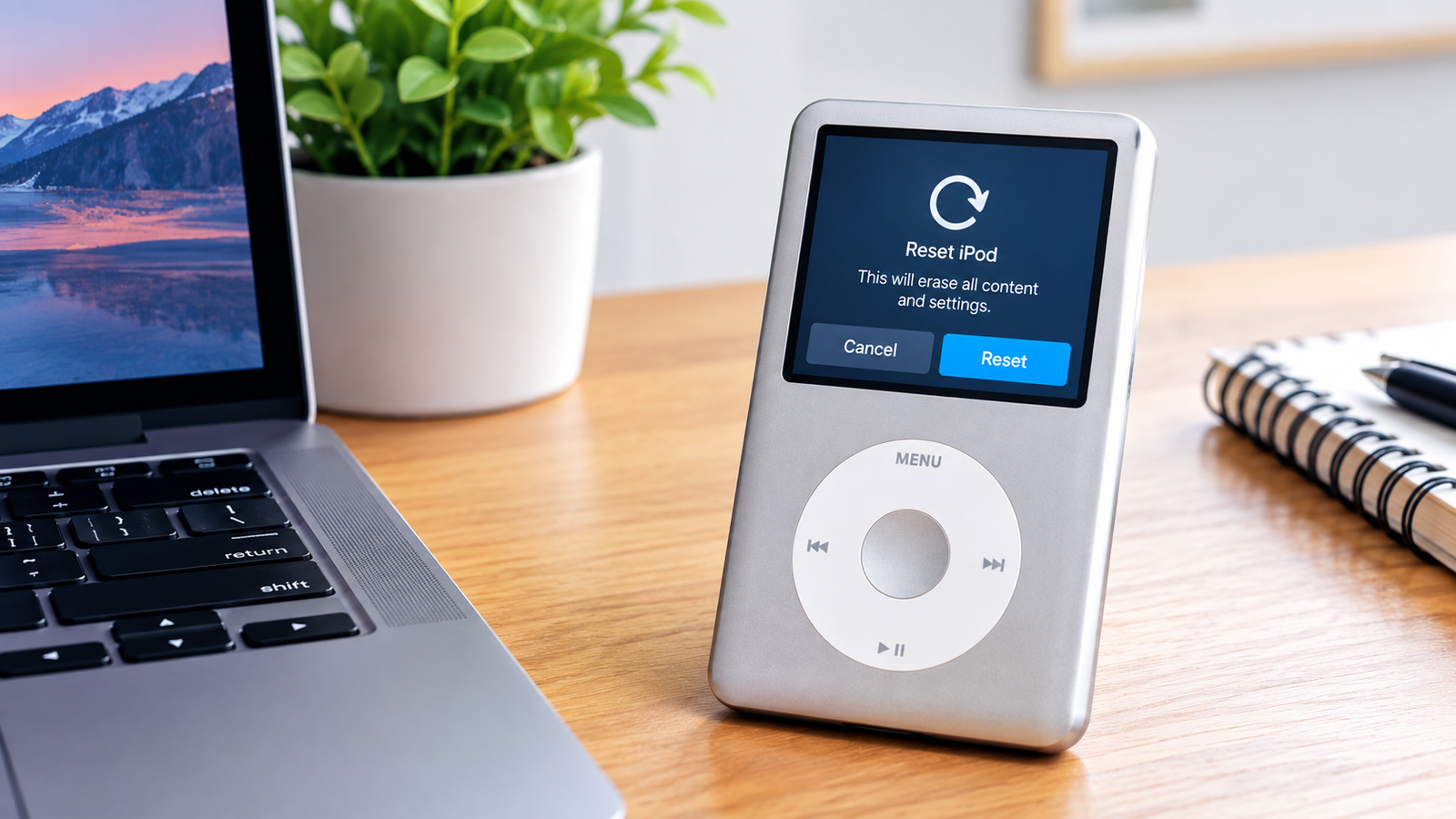
So your iPod’s frozen, stuck on a spinning wheel, or just refusing to turn on and you’re here because the internet’s full of vague half-answers about it.
Fair enough, honestly, because how to reset iPod actually depends a lot on which iPod you’re holding. A 2007 iPod Classic and a last-gen iPod Touch don’t share a single button between them, so a one-size-fits-all answer was never going to cut it.
I’ve owned basically every generation of these things over the years click wheel, touchscreen, that weird tiny Shuffle with no screen at all and I’ve had to reset every single one of them at some point.
So here’s the actual breakdown, model by model, plus the stuff nobody bothers explaining, like what the difference even is between a soft reset and wiping the thing entirely.
Why “Reset” Means Different Things Depending on the iPod
Before jumping into button combos, it’s worth clearing up something that trips a lot of people up.
Soft reset versus factory reset
A soft reset sometimes called a force restart just reboots a frozen or unresponsive iPod without touching your music, photos, or settings. Think of it as the iPod equivalent of holding down a phone’s power button when an app’s crashed.
A factory reset, on the other hand, wipes everything back to the state it was in fresh out of the box. Completely different outcomes, and mixing them up is how people accidentally lose years of playlists.
Why click-wheel iPods are their own thing
If you’ve got an older Classic, Nano, or Shuffle, you’re dealing with hardware that predates iOS entirely. These don’t have a Settings app in the way an iPod Touch does, so “resetting” them usually means either the button-combo force restart or digging through an on-device Settings menu that looks nothing like a modern iPhone’s.
A Quick Refresher on Which iPod You Actually Have
Since half the confusion around this topic comes from people not being 100% sure which model they’re holding, let’s sort that out fast.
Look at the back
Every iPod has its model info stamped on the back casing, though on the really old ones the text has usually worn down to nothing after years in a pocket. If you can still read it, that’s your fastest confirmation.
Judge by the shape and controls
Touch means a full touchscreen with no physical wheel at all. Classic and older Nanos use a circular click wheel with Menu, Select, and directional touch-sensitive segments. Later Nanos (6th and 7th gen) ditched the wheel for a small touchscreen instead.
Which confuses people constantly because it looks a bit like a shrunk-down Touch. Shuffle has no screen whatsoever just a body, buttons, and a headphone jack.
When in doubt, check Settings
If the device powers on and you can navigate a menu at all, go to Settings, then General, then About every iPod that can display this screen will tell you its exact model and storage capacity right there.
How to Reset an iPod Touch (All Generations)
This is far and away the most common search, so let’s get straight into it.
The button combo for newer models
On a 7th generation iPod Touch, press and hold the Top button and the Volume Down button together for about 10 seconds, until the Apple logo shows up. That’s a soft reset nothing gets erased, it just forces a fresh restart.
Older Touch models use a different pair
If you’re on a 6th generation iPod Touch or earlier, it’s the Top (or Sleep/Wake) button plus the Home button instead, held together for roughly 10 seconds until you see that same Apple logo.
I’ve noticed people sometimes give up around the 5-second mark thinking nothing’s happening give it the full stretch, it takes a moment.
When you actually need a full factory reset
If a soft reset doesn’t fix whatever’s wrong, or you’re planning to sell or give away the device, you’ll want to properly erase it instead. Go into Settings, tap General, then Transfer or Reset iPod, and select Erase All Content and Settings.
You’ll need your passcode, and if you’re signed into iCloud, your Apple Account password too. Back up first if there’s anything on there you care about this step genuinely deletes everything, not just app data.
If the touchscreen itself won’t respond
Here’s the thing most guides skip: what happens when the screen’s too frozen to even tap through Settings? In that case, connect the iPod to a computer and use Finder (on newer Macs) or iTunes (on Windows or older Macs).
Select the device, click Restore, and let it handle the wipe remotely. It’s slower than doing it on-device, but it works even when the touchscreen’s completely unresponsive.
How to Reset an iPod Nano
Nano owners get a bit of a mixed bag here, because Apple changed the hardware layout across generations more than once.
7th generation Nano
Press and hold the Sleep/Wake button and the Home button simultaneously until the screen goes dark, then wait a few seconds for the Apple logo and home screen to reappear.
6th generation Nano
This one swaps Home for Volume Down. Hold the Sleep/Wake and Volume Down buttons together for at least 8 seconds until the Apple logo shows.
5th generation and earlier (Click Wheel Nanos)
Older Nanos work completely differently there’s no touchscreen or Home button at all. First, slide the Hold switch firmly into the unlocked position, since a locked Hold switch is a shockingly common reason resets don’t work in the first place.
Then press and hold the Menu button and the Center (Select) button together for about 8 seconds until the Apple logo appears.
A tip that actually helps with click wheels
If you’re struggling with a click-wheel Nano specifically, set it down flat on a table rather than holding it in your hand. Press Menu from the outer edge of the wheel, not near the center, and make sure your other finger isn’t accidentally resting on the scroll wheel itself while you’re holding Select.
I wasted a solid ten minutes on this once before realizing my thumb was brushing the wheel the whole time.
How to Reset an iPod Classic
The Classic uses the same click-wheel logic as older Nanos, so if you’ve read the section above, this’ll feel familiar.
Toggle the Hold switch on and then off again don’t skip this, it matters more than it seems like it should. Then press and hold the Menu and Center buttons together for roughly 6 to 8 seconds until the Apple logo appears. You might need to repeat the process once or twice; Classics from this era can be a little stubborn about it.
If it’s still not budging
Plug the Classic into a power source or your computer before trying again. A near-dead battery is one of the sneakier reasons a reset attempt fails silently, and it’s easy to overlook since the screen might not show any obvious low-battery warning while it’s unresponsive.
How to Reset an iPod Shuffle
This is genuinely the easiest one on the list, and honestly kind of refreshing after all those button combinations.
Since the Shuffle has no screen and no click wheel, there’s nothing to freeze in a complicated way. Just slide the On/Off switch to Off, wait about five to ten seconds, then slide it back to either the shuffle or play-in-order position.
That’s the entire process. If it’s still not responding after that, check the battery Shuffles are small enough that a dead battery looks identical to a frozen one from the outside.
What to Do If None of the Button Combos Work
I’ll be honest, sometimes the standard reset just doesn’t take, and that’s worth planning for rather than panicking over.
Check the obvious stuff first
A completely dead battery is the number one reason resets appear to fail. Plug the iPod into power for at least 15 to 20 minutes before trying the button combination again a battery that’s fully drained sometimes needs a few minutes of charging before the device will even acknowledge button presses.
Try a different power source
If you’re charging from a computer’s USB port, especially an older or unpowered hub, try a wall adapter instead. In my experience, some USB ports just don’t push enough current to both charge and respond to a reset attempt at the same time.
Give it more than one attempt
Especially with older click-wheel models, a single try often isn’t enough. Apple’s own troubleshooting guidance for these devices repeatedly mentions needing to repeat the button combo it’s not you doing something wrong, it’s just how these devices behave.
Resetting Individual Settings Without Wiping Everything
Sometimes you don’t want a full factory reset you just want to fix one specific setting that’s gone haywire, and nuking the whole device feels like way too much.
Network settings
On an iPod Touch, go to Settings, General, then Reset, and choose Reset Network Settings. This clears saved Wi-Fi networks and VPN configurations without touching your photos, music, or apps. Handy if a specific Wi-Fi network keeps auto-connecting and causing problems.
Home screen layout
Rearranged your icons into chaos and want the default layout back? The same Reset menu has a Reset Home Screen Layout option that puts everything back where Apple originally placed it.
Keyboard dictionary
If autocorrect’s learned a bunch of typos or slang you’d rather it forgot, Reset Keyboard Dictionary clears out every word you’ve manually added over time, without affecting anything else.
On older click-wheel iPods
Nano and Classic models have their own version of this from the Settings menu on the device itself, choose Reset Settings, then confirm. This resets things like display brightness, shuffle preferences, and other on-device options back to default, again without touching your actual music library.
What to Do When an iPod Won’t Turn On At All
This is a step earlier than resetting, technically, but it’s worth covering because people often think their device needs a reset when it’s actually just not charging.
Rule out a dead battery first
Plug the iPod into a wall charger, not a computer, and leave it alone for a solid 20 to 30 minutes before touching anything. Older iPod batteries especially can degrade to the point where they need a genuine charging window before displaying any sign of life, even a low-battery icon.
Try a different cable
I can’t count how many “broken” iPods I’ve fixed just by swapping out a worn Lightning or 30-pin cable. The connector pins wear down over years of use, and a cable that still charges your phone fine might not push enough current to a fussier, older iPod.
Look for the Apple logo cycling on and off
If you see the Apple logo appear, then the screen goes black, then it appears again in a loop, that’s usually a boot loop rather than a simple dead battery and that’s exactly the kind of situation a proper reset or restore is meant to fix.
Troubleshooting When Your Computer Won’t Recognize the iPod
Sometimes the reset itself works fine, but the next headache is getting your computer to actually see the device for a restore.
Check the cable and port first
The same worn-cable issue from charging applies here too a cable can charge a device just fine while failing to carry data properly. Try a different USB port directly on your computer rather than through a hub if you’re having trouble.
Update iTunes or use the Apple Devices app
On Windows, an outdated iTunes install is a classic cause of a computer simply not detecting the iPod. On newer Macs, iTunes has been replaced by Finder for this purpose, so if you’re following an old guide that mentions iTunes on a Mac and can’t find it, that’s why look in Finder’s sidebar for the device instead.
Restart both devices
It sounds almost insultingly basic, but restarting your computer, not just the iPod, resolves a surprising number of “my computer won’t see my iPod” situations. Something about a stale USB driver state seems to gum things up more often than you’d expect.
Common Myths About Resetting an iPod
A few misconceptions keep circulating, so let’s knock them out directly.
Myth: resetting always erases your music
Nope. As covered earlier, a soft reset or force restart is purely a reboot. Only a factory reset or full restore actually wipes your content, and those are separate, deliberate actions you have to specifically choose.
Myth: you need iTunes for every kind of reset
Not true for a basic soft reset that’s always done with button combinations directly on the device. iTunes (or Finder) only comes into play for a full restore, or when the device is too unresponsive to navigate on its own.
Myth: an old iPod can’t be reset if it’s ancient enough
Even original click-wheel iPods from the early 2000s can still be reset using the Menu-and-Play button combo, which predates even the Select-button version used on later click-wheel models. Age alone doesn’t make a device unresettable dead hardware does, which is a different problem entirely.
Myth: a factory reset fixes battery problems
I wish. A factory reset addresses software issues glitches, corrupted settings, sluggish performance from years of accumulated junk. It does nothing for a physically degraded battery, which is a hardware problem no amount of resetting will touch.
Preparing an iPod for Sale or Donation
If the reason you’re here is that you’re passing the device along rather than fixing a freeze, the process has a couple of extra steps worth knowing.
Sign out of accounts first
On an iPod Touch, go to Settings, tap your name, and sign out of iCloud before doing the factory reset. Skipping this step can leave Activation Lock enabled, which will make the device useless to whoever receives it until they somehow get your Apple ID credentials.
Deauthorize the computer if needed
For older iPods tied to a specific iTunes library, especially ones that once played DRM-protected purchases, it’s worth deauthorizing the device from your Apple account before handing it over, just to keep your account’s device count clean.
Do the reset last, not first
Back up anything you want to keep, sign out of accounts, deauthorize if relevant, and only then run the actual erase. Doing it in the wrong order is how people end up locked out of their own backups after the fact.
A Brief History of Why iPod Resets Got So Complicated
This part’s more trivia than troubleshooting, but I think it explains a lot about why this topic gets so confusing to search for.
Apple released iPods across nearly two decades, and the hardware changed dramatically over that stretch from a simple scroll wheel with physical clicks, to a touch-sensitive click wheel, to a screen-based Nano, to a fully touchscreen Touch that essentially ran a stripped-down version of iOS.
Each hardware shift came with its own reset logic, because there wasn’t a consistent button layout to build a single universal instruction around. That’s genuinely the core reason “how to reset an iPod” doesn’t have one clean answer the question itself covers roughly six different pieces of hardware pretending to be one product line.
Before You Do a Full Factory Reset, Back Up First
I say this every time someone asks me about resetting a device, and I’ll say it here too, because it genuinely bears repeating.
For an iPod Touch
Connect to Wi-Fi, open Settings, tap your name at the top, then iCloud, and manually trigger a backup, or just make sure automatic iCloud backup is switched on. You can also plug into a computer and back up through Finder or iTunes if you’d rather keep a local copy instead of relying on cloud storage.
For older iPods
Since Classic, Nano, and Shuffle models mainly just hold synced music rather than personal data in the same sense, backing up usually just means confirming your music library on your computer is current — the iPod itself typically isn’t the only copy of your files unless you’ve been syncing one-directionally for years, which, no judgment, some people genuinely have.
Getting Your Music Back After a Reset
Once the reset or restore is done, there’s usually a moment of panic when the device boots up completely empty. That’s normal, and here’s how to get everything back where it belongs.
If you’re restoring from an iCloud backup
On an iPod Touch, the setup screen after an erase will offer to restore from a backup during the initial setup process. Choose that option, sign into iCloud, and pick the most recent backup — this brings back apps, settings, and photos, though large libraries can take a while depending on your Wi-Fi speed.
If you’re syncing from a computer library
For older click-wheel iPods especially, your music was likely never actually stored anywhere except your computer’s iTunes (or Music app, on newer Macs) library in the first place. After a reset, just reconnect the iPod, and depending on your sync settings, it’ll either automatically repopulate or prompt you to choose which playlists and albums to sync over.
When the sync settings themselves got wiped
A factory reset on an iPod Touch, or a full restore on any model, clears out sync preferences too, not just the content. You’ll likely need to manually reselect which playlists, photos, or podcasts you want synced, since the device won’t remember your previous configuration.
A Word About Repair Versus Replace
If you’ve been through every reset method here and the iPod’s still misbehaving, it’s worth having an honest conversation with yourself about whether it’s worth fixing at all, especially for older models.
Battery replacement is often worthwhile
If the iPod otherwise works and the problem’s clearly battery-related won’t hold a charge, dies instantly, won’t turn on until plugged in a battery swap is usually cheap and straightforward for click-wheel models specifically, since their batteries are more accessible than the glued-in units in newer Touch models.
Screen or click-wheel damage is a tougher call
Physical damage to a touchscreen or a worn-out click wheel starts getting into repair costs that rival buying a used replacement unit outright, particularly for a device this old. I’d only sink real money into that kind of repair if the iPod has genuine sentimental value or holds a music library you’re not keen on rebuilding elsewhere.
Frequently Asked Questions
Will resetting my iPod delete my music and photos?
A soft reset (force restart) won’t touch anything. A full factory reset erases everything, so back up first if there’s content you want to keep.
Why won’t my iPod Classic respond to the Menu and Select button combo?
Check that the Hold switch is fully unlocked first, then make sure the battery has some charge a near-dead battery is the most common reason this fails.
How long should I hold the reset buttons before giving up?
Generally 8 to 10 seconds, until you see the Apple logo. If nothing happens after that, plug the device into power and try again rather than holding longer.
Can I reset an iPod Touch without using the touchscreen?
Yes. Connect it to a computer and use Finder or iTunes to restore the device this works even if the screen itself is completely unresponsive.
Is there a difference between resetting and restoring an iPod?
Yes. Resetting typically means a restart or clearing specific settings, while restoring wipes the device and reinstalls its software from scratch, usually done through a computer.
Do I need an internet connection to reset an iPod?
A soft reset needs no connection at all. A factory reset on an iPod Touch does need Wi-Fi if you plan to restore from an iCloud backup afterward, though the erase step itself works offline.
Why does my iPod show a sad-face icon or a folder with an exclamation point?
That symbol generally points to a corrupted software installation rather than something a simple reset will fix you’ll need to connect it to a computer and restore it properly through Finder or iTunes.
Can I reset just one app’s data on an iPod Touch instead of the whole device?
Generally no, unless the app itself offers a built-in reset or sign-out option. iOS doesn’t provide a system-level way to wipe a single app’s data without deleting and reinstalling it entirely.
Final Thoughts
At the end of the day, resetting an iPod isn’t complicated once you know which model you’re actually holding the trick is just matching the right button combo (or menu path) to the right device instead of guessing based on advice meant for a completely different generation.
Start with the soft reset every time; it’s harmless and fixes the majority of freezes and glitches without any real risk. Only reach for a full factory reset when something’s genuinely broken beyond that, or you’re passing the device along to someone else.
Give it a shot, and if your particular iPod’s still being stubborn after all this, don’t be shy about digging into Apple’s own support pages for your exact model they’ve documented this stuff more thoroughly than most people realize.Apple’s official guide to force restarting iPod models and Apple’s official factory reset guide for iPhone, iPad, and iPod touch.